.heic.jpg
Convert images.
In your browser.
Done in seconds.
HEIC, WEBP, AVIF, SVG, PDF, TIFF, BMP, GIF — 29 conversion routes, zero uploads. Files never leave your device.
- 100% local
- No upload wait
- Batch & ZIP
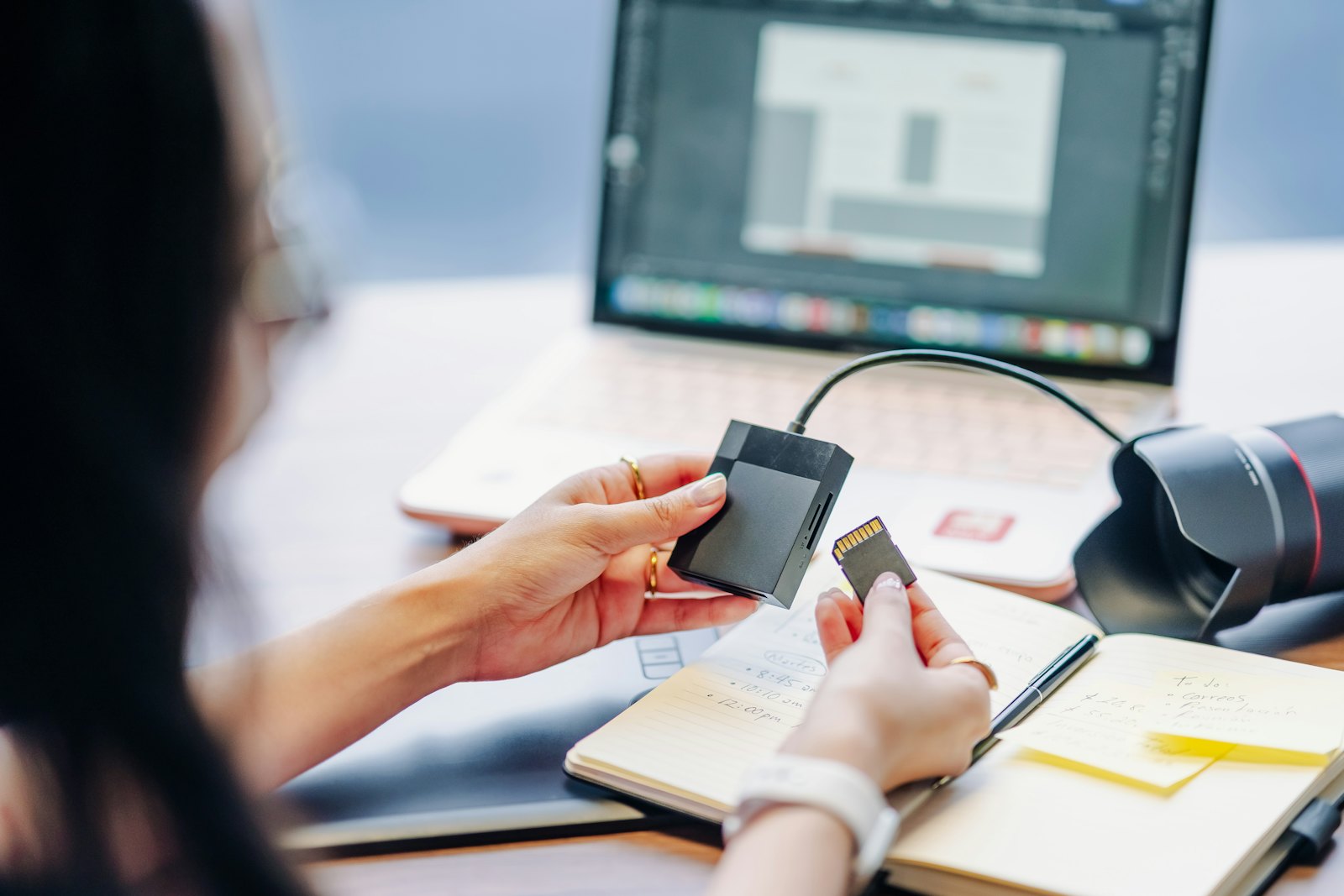
Drop images here or click to browse
Supports HEIC, WEBP, AVIF, BMP, TIFF, SVG, GIF, ICO, PDF, JPG, PNG
100% Private — Your files never leave your device
All conversion happens directly in your browser using JavaScript. Nothing is uploaded to any server. Your images stay on your computer the entire time.
.heic
Why can't I open my iPhone photos?
Since iOS 11, iPhones save photos in HEIC format (High Efficiency Image Container) by default. While HEIC files are roughly half the size of JPG, they aren't universally supported — Windows, some email clients, and many websites can't open them. This converter transforms your HEIC photos into widely-compatible JPG or PNG files.
.webp / .avif
What about WEBP and AVIF files?
WEBP (developed by Google) and AVIF (based on the AV1 video codec) are modern image formats used by websites for faster loading. When you save or download images from the web, they're increasingly in these formats. If you need to use them in an application that doesn't support WEBP or AVIF, convert them here.
.formats
Eleven formats. One tool.
From iPhone HEIC and modern AVIF to legacy BMP and TIFF — pick any input, pick any output, the math runs in your browser.
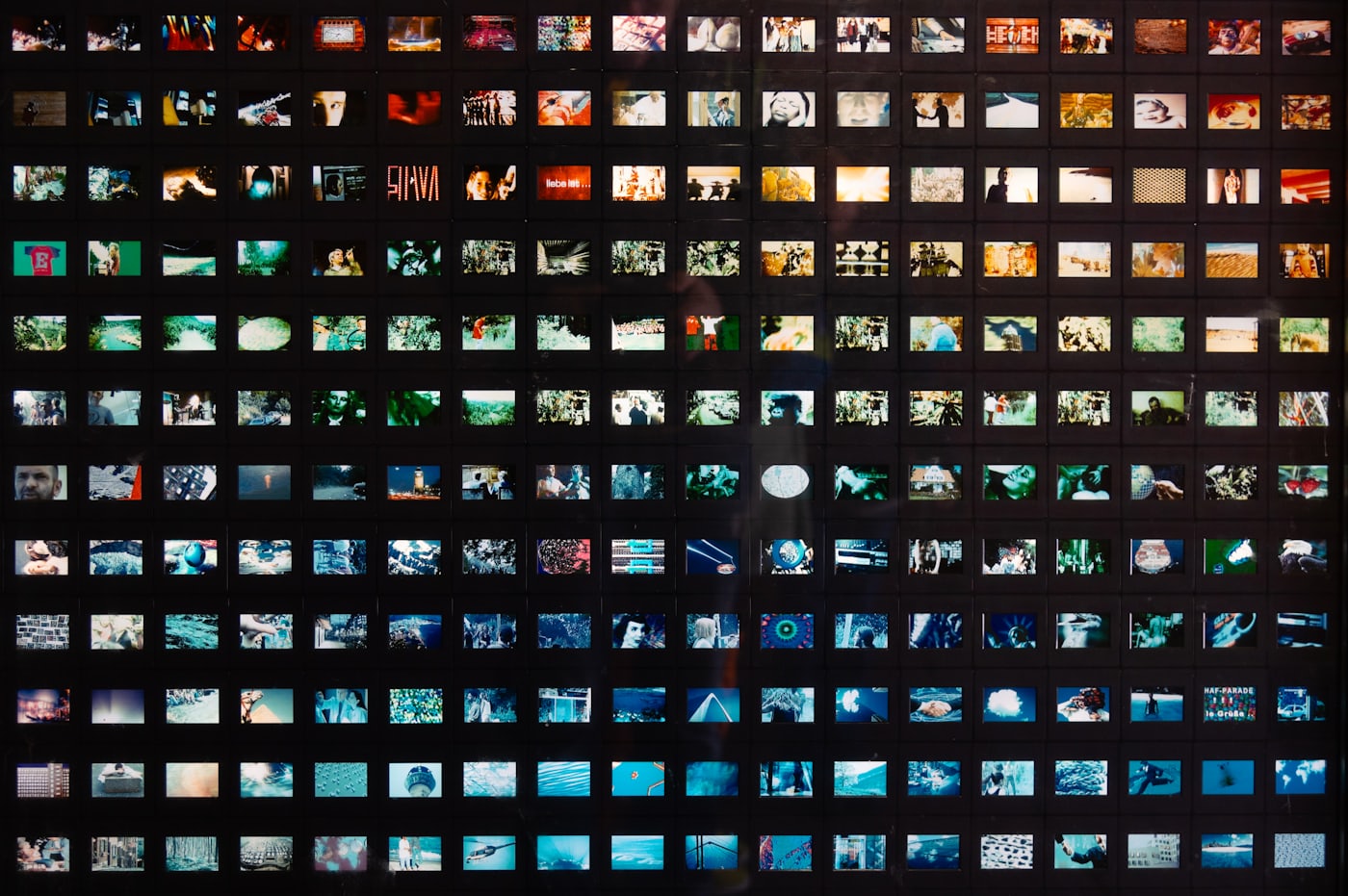
.inputs / .outputs
Supported formats
Input
- HEIC / HEIF (iPhone photos)
- WEBP (Google web format)
- AVIF (AV1 image format)
- SVG (Vector graphics)
- PDF (Document first page)
- GIF (Graphics Interchange)
- BMP (Bitmap)
- TIFF (Tagged Image File)
- JPG / PNG (for format conversion)
- ICO (Icon files)
Output
- JPG — best for photos, smaller file size
- PNG — best for graphics, lossless quality
- WEBP — modern web format, excellent compression
- AVIF — next-gen format, best compression
- BMP — uncompressed bitmap
- GIF — simple animations and graphics
- ICO — favicons for websites
.guides
Guides
Image Format Guide — JPG, PNG, WebP, AVIF, HEIC & More
What every common format is best for, in a sentence — plus every converter to and from it, all on one page.
How to Convert Images Without Quality Loss
Lossy vs lossless formats, when quality is preserved, and which format to choose (PNG, WebP, AVIF, JPG).
How to Compress Images Without Losing Quality
Lossless vs visually lossless, the best compression format, the quality settings that stay invisible, and the tools.
How to Batch Convert Images Without Losing Quality
Practical how-to for converting many images at once — format choice, quality settings, and the easiest tools.
Image Format by Use Case
A decision guide — which format to pick for photos, web, print, icons, transparency, animation.
PNG vs JPG: Which Is Better?
Lossless vs lossy compression, transparency, file sizes, and a simple rule for picking the right format every time.
PNG vs. WebP: Which Format for Your Website?
Head-to-head comparison — file size, quality, transparency, browser support, and the conversion workflow.
HEIC vs. JPG: What's the Difference?
Why iPhone photos are HEIC, where the format breaks outside Apple devices, and when to convert to JPG.
WebP vs AVIF: Which Format for 2026?
Compression, encode speed, browser support, HDR, and the picture-element fallback chain that ships AVIF safely.
What Is AVIF?
The format explained — measured against WebP and JPEG at matched quality, browser support, and when it is the wrong choice.
.routes
Quick converters
Jump directly to a specific conversion route:
.pro tip
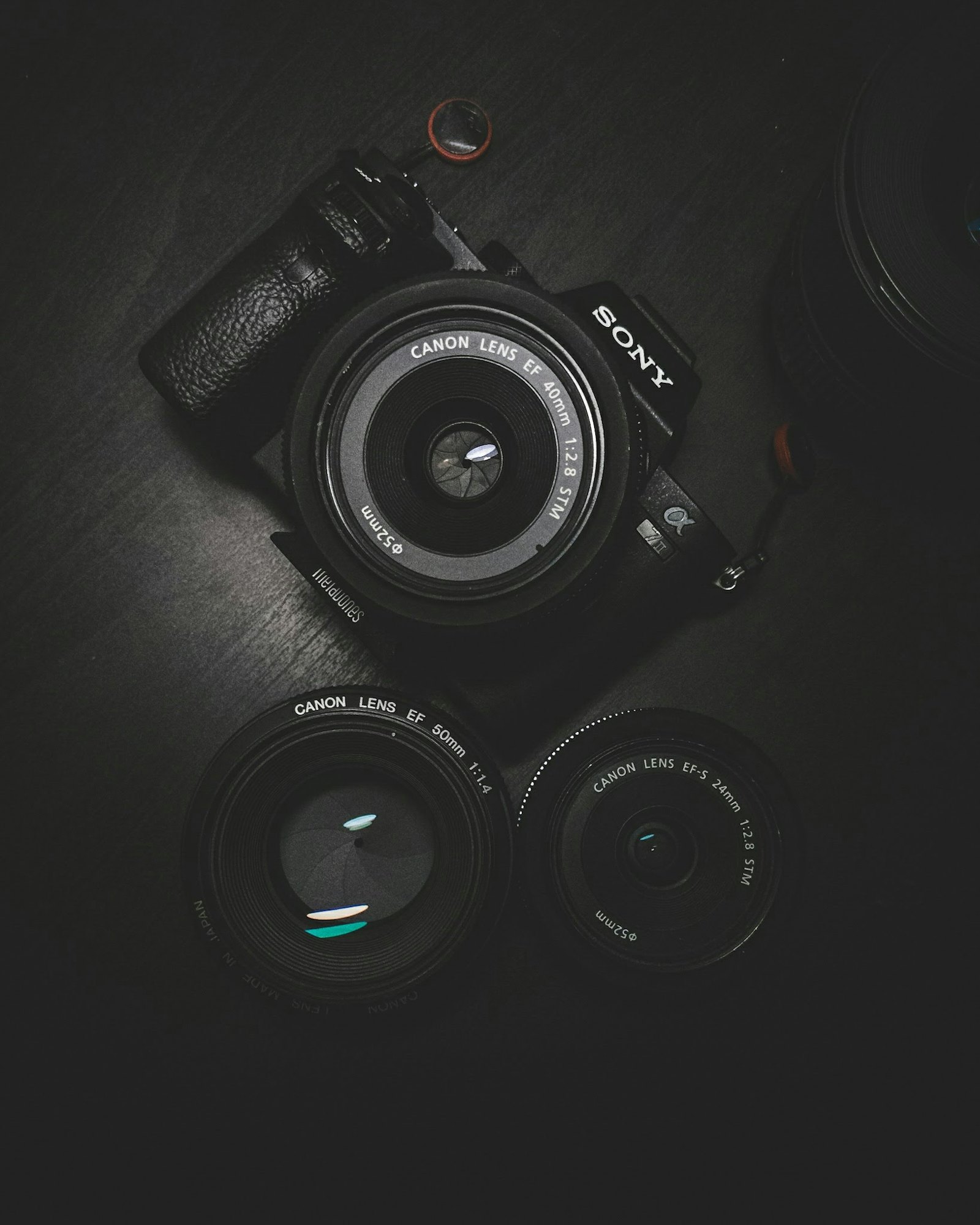
The DSLR-to-anywhere workflow.
Export from your camera, drop the whole folder in — every file is converted client-side in parallel, then bundled as a ZIP.
.faq
Frequently asked questions
How do I convert HEIC to JPG?
Drop or select your HEIC file above, choose JPG as the output format, adjust quality if needed, and click download. The conversion happens entirely in your browser — no upload required.
Why are my iPhone photos in HEIC format?
Apple uses HEIC (High Efficiency Image Container) by default since iOS 11 because it produces smaller file sizes than JPG while maintaining quality. You can change this in Settings > Camera > Formats.
Is WEBP better than JPG?
WEBP typically produces 25-35% smaller files than JPG at equivalent quality. It supports transparency (like PNG) and animation (like GIF). However, some older software doesn't support WEBP.
Will converting HEIC to JPG lose quality?
There is minimal quality loss when converting to JPG. Use the quality slider set to 90% or higher for nearly indistinguishable results. Converting to PNG preserves full quality but produces larger files.
What is AVIF format?
AVIF is a modern image format based on the AV1 video codec. It offers better compression than both JPG and WEBP, but browser and software support is still catching up.
Can I convert PDF to an image?
Yes! Drop a PDF file into the converter and it will render the first page as an image in your chosen output format. The rendering happens entirely in your browser at 2x resolution for sharp results.